Conditional Logic (Branching)
Written By revealai
Last updated 5 months ago
What Are Sections?
Sections are logical groupings of questions in your interview that allow you to create conditional branching - showing different questions to different respondents based on their answers. This enables you to build dynamic, personalized interview flows.
Each section has:
A title and optional description
A display mode (Always Show or Conditional)
One or more questions
Display Modes
Always Show
Appears for all participants
Displays in the order it appears in your interview
Conditional
Only appears when conditions are met
Hidden by default until triggered by a participant's response
Example: Show "Chips Questions" section only if participant selects "I buy chips"
How sections work: Interviews always progress in sequential order. Conditional sections are revealed as participants move through the interview, but the order never changes. If Section 3 is conditional and gets triggered in Section 1, participants will still see Section 2 (Always Show) before Section 3.
Adding Sections
Creating Your First Section
In the Design tab, click the "+ Section" button.
Configuring Section Properties
Click on the three dots on the right side of the section, then select "Edit Section"
Edit the title and description fields
Choose the display mode:
Select "Always" for sections that should show to everyone
Select "Conditional" for sections that only appear when triggered
Adding Questions to Sections
To move questions into / out of a section simply drag and drop questions. New questions are automatically added to the last section
Using Conditionals
There are two ways to create conditional logic:
1. Section-Level Conditionals: "After This Section"
Control what happens when a respondent finishes an entire section.
To set up:
Edit a section
Find the "After this section" dropdown at the bottom of the section card (unavailable on the final section of your interview)
Choose an action:
"Continue to Next Section" (default) - Flow naturally to the next section
"End and Submit" - Complete the interview after this section
"Show Section [Name]" - Enable a specific conditional section to present to a participant
Notes:
You can only target conditional sections that come after the current section
The last section in your interview doesn't have this option
2. Question-Level Conditionals: "Response Actions"
Use logic based on specific answer choices in multiple choice questions.
To set up:
Open a multiple choice question (single-select or multi-select)
Enable "Show Response Actions" checkbox
For each answer option, choose an action from the dropdown:
"None" - No special action, continue normally
"End and Submit" - Complete the interview if this answer is selected
"Show Section [Name]" - Enable a specific conditional section to show if this answer is selected
Notes:
Only available for Single-Select and Multi-Select questions
You can only target conditional sections that come after the question's current section
Each answer can have its own unique action
Handling Multi-Select Conditional Logic
Since multi-select questions can have multiple responses, it can get confusing what happens depending on the combinations of responses a user gives. The logic follows these rules:
If any "End and Submit" responses are chosen the interview ends immediately
All "Show Section [Name]" responses trigger sections to be shown
For example, if these were the options:
Yellow => No action
Blue => End and Submit
Red => Show Section Fire
Green => Show Section Forest
Orange => No action
Brown => Show section Mountains
A user who selects any combination of responses including Blue would have their interview terminate immediately
A user who selected Yellow and Red would have the Fire section shown later in their interview
A user who selected Green, Brown, and Orange would have both the Forest and Mountains section shown later in their interview
A user who selected just Orange would not have any sections added and they would continue their interview as normal
Actions You Can Take After Sections
Continue to Next Section (Default)
The interview flows naturally to the next section that is marked as show ALWAYS in your list. This is the standard sequential flow. It does not include conditional sections!
Use when: You want a linear progression through your interview.
End and Submit
Terminates the interview immediately and submits the respondent's answers.
Use when:
You want to exit a respondent after a conditional section.
Example: If someone selects "I'm not interested in this product," you might send them to a conditional section with a few followup questions about why they're not interested, and after that section exit them from the interview
Show Section [Name]
Shows the respondent a specific conditional section later in the interview
Use when:
You want to chain multiple conditional sections together
Complete Example: Building a Branched Interview
Let's say you want to create an interview that branches based on company role:
Step 1: Create Your Sections
Base Section (Always)
Question: "What is your role?" (Single Select)
Developer
Designer
Product Manager
Developer Questions (Conditional)
Questions about programming languages, tools, etc.
Designer Questions (Conditional)
Questions about design tools, processes, etc.
Product Manager Questions (Conditional)
Questions about product strategy, metrics, etc.
Customer Relations Questions (Conditional)
Questions about interfacing with customers. These questions only apply to Designers and Product Managers.
Closing Questions (Always)
Final questions for everyone
Step 2: Set Up Response Actions
In the Base Section, edit the Role question:
Enable "Show Response Actions"
For "Developer" → Select "Show Section: Developer Questions"
For "Designer" → Select "Show Section: Designer Questions"
For "Product Manager" → Select "Show Section: Product Manager Questions"
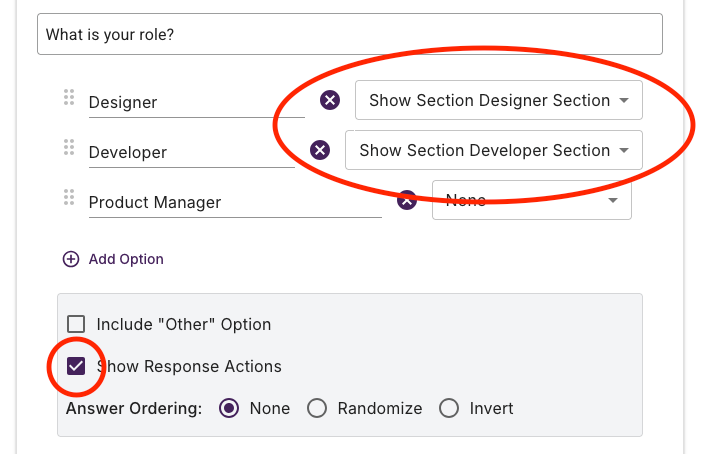
Step 3: Configure Section Flow
For both the Designer and Product Manager conditional sections
Set "After this section" to "Show Section: Customer Relations Questions"
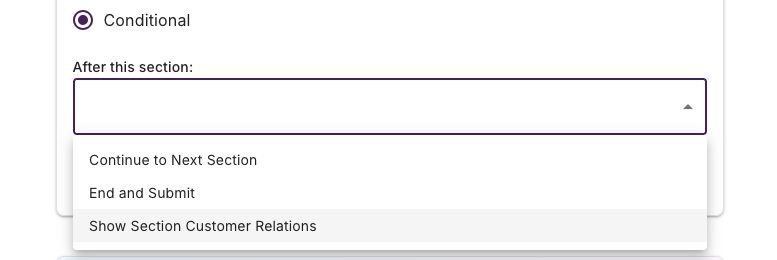
All respondents will always end with the "Closing Questions" section since it is set to always show.
Result
Respondents will:
Answer the role question in the Base Section
Be shown the questions in their role-specific sections. In the case of Designers and Product Managers, they will also be shown the additional questions in the "Customer Relations" section
Skipping any irrelevant sections, all participants will be shown the final Closing Questions section
Complete the interview
Tips and Best Practices
Test your logic: Preview your interview and test different answer paths
Keep conditional sections after their triggers: You can only link forward, not backward. Be mindful when moving section around
Don't over-branch: Too many paths can make your interview hard to manage and analyze
Managing Sections
Reordering Sections
Click on the three dots on the section header and select "Move Section"
Drag and drop section cards or use the arrow buttons to reorder them
Once you hit "Save" you may be presented with some warnings about broken flow rules (for example if you moved a conditional section before the question that triggers it). You can either cancel or select "Save Anyway" and then go fix the broken logic.
Deleting Sections
Click on the three dots on the section header and select "Delete Section"
Deleting a section also deletes ALL the questions in it, so you may want to move them our first if you intend to keep the questions.
Moving Questions Between Sections
Drag questions from one section to another to reorganize your interview structure.
Was this helpful?
Still need help? Ask the team