Collect Tab Overview
Written By revealai
Last updated About 2 months ago
The Collect Tab is where you’ll find all of your interview collection data. In this article we’ll review the sections and functionality of this tab.
Preview vs. Live Interviews
Preview Interviews are any interviews that are captured while the chatbot is set to “Testing” or a user has taken a live interview with the appended url parameter or ?preview=true. For example: https://interview.dev.getreveal.ai/i/revealai-demo?preview=true
Live Interviews are any interviews that are taken while the chatbot is in “Collecting” mode. Excluding interviews that are explicitly declared to be a preview as outline above.
As discussed in other articles, Preview Interviews don’t qualify for analysis. For this reason, it’s imperative that the chatbot is switched to Collecting. (note: there are ways to qualify interviews for analysis that we’ll discuss later, but it’s tedious and better to avoid.)
To help make sure the chatbot is in the correct mode, there will be a notice at the top of the tab showing that the chatbot is in Testing mode and action button to launch / move it into Collecting mode (see screenshot below). This notice will not be visible if your chatbot is in Collecting or Closed mode.

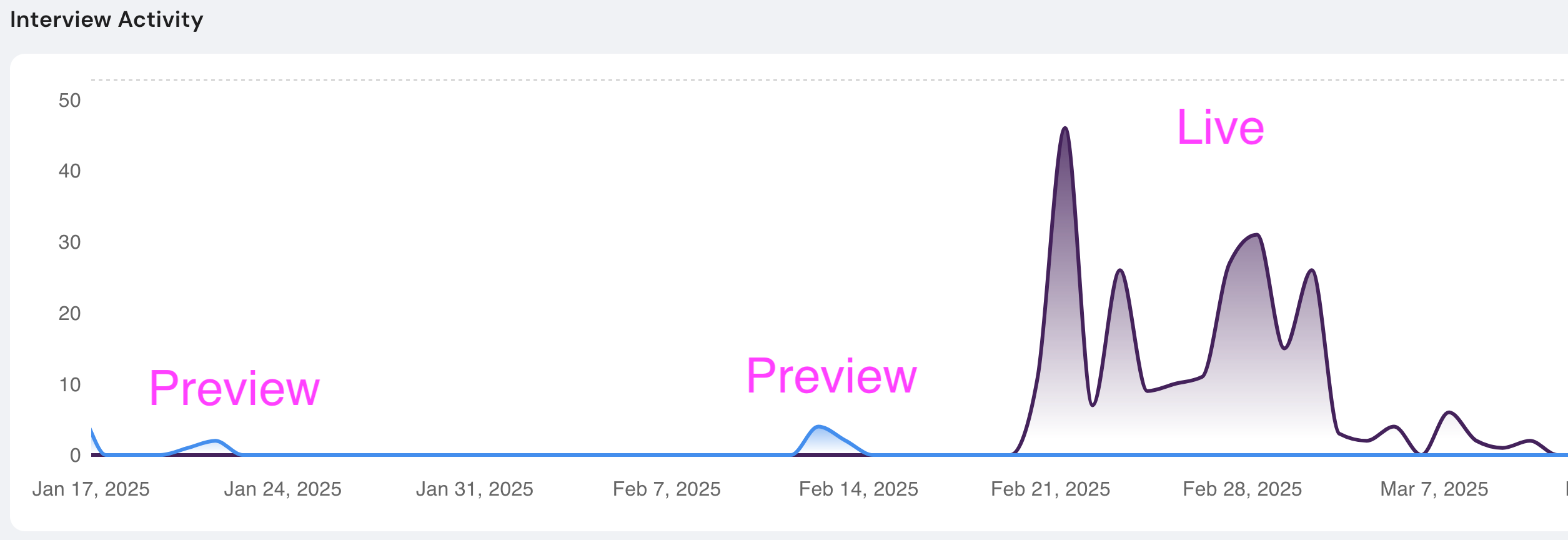
Once you have interviews that fall into each of the categories above (Preview and Live), the “Show Preview Interviews” toggle (see screenshot above) can be used to show and hide the preview results from the tab. When enabled, preview interviews will chart as a separate line.
Interview Metrics
The Collect tab compiles a handful of metrics to help provide a snapshot of what’s going on with your data collection. These are:
Interviews Started: Total number of interviews started
Interviews Active: Number of interviews currently in progress
Interviews Qualified: Number of interviews to be included in analysis
Interviews Complete: Number of fully completed interviews
Median Duration: Median interview completion time (Incomplete interviews are excluded)
Exploring the Data
Filter By Date
You can adjust the date range that you see in the collect tab by
Date Picker: Use the picker to select a start and end date
Chart-based Selection: Click on a date to set as a start date or drag across a select time frame
The filters will apply to the entirety of the tab, including the Interview Metrics outlined above, chart data and transcripts. The “Reset” button will return the tab to its default state.
Filter By Tracking ID
If you use the tracking id functionality as outlines in Embed RevealAI iFrame then there will be a column for tracking ID in the list of interviews and a search by tracking ID functionality. The search bar accepts full or partial tracking ID’s as well as a comma/tab/space separated list of tracking IDs
Transcripts
The transcripts table provides detailed information about each response including Tacking ID (if used), Timestamp, Duration, Eligible for Analysis, Status, etc
The entirety of the transcript may be accessed by clicking the “Chat” icon to the right of the table. The transcript modal provides the following functionality:
Copy Transcript Link: Copies a shareable transcript link to the clipboard
Copy Specific Question or Response Link: Copies a shareable link to a specific spot in the interview
Include in Analysis: Toggle whether an interview is included in analysis (see below)
Controlling Which Interviews are Analyzed
Each interview has a property which dictates if it is included in analysis runs. Reveal automatically sets this value based on some parameters, but if you need to manually make changes you can.
By default Reveal will include any interview that received user input while the project is in collecting mode. Interviews taken in preview mode are not included in analysis (since they’re usually for testing purposes). However, sometimes you might forget to launch the project and all your responses are marked “Preview”, or maybe you have some responses you’d like to disqualify based on some outside metrics of your own.
You can select interviews manually, or by tracking id if you are utilizing that feature. Once selected you can mark them to be included or excluded from future analysis runs.
Was this helpful?
Still need help? Ask the team