Writing Interview Questions
Written By revealai
Last updated 3 months ago
The main section of the Design tab is dedicated to the crafting of your interview questions. To get started, click the “Add New Question” dropdown. You’ll notice that you have two options: Multiple Choice Questions and Text Questions.
Questions Types
Quantitative Questions
By and large, Quantitative Questions are designed to be profile questions. The questions are typically demographic in nature and are used as filters in the sidebar of the Discover tab. While there is not limit to how many Quantitative Questions you can ask, we recommend somewhere in the 3 to 5 range. These questions default to having no follow-ups, but that can be adjusted as you see fit.
Type: You can choose between single-choice and multiple-choice.
Dynamic: If you turn on this option, then question options are not pre-specified and instead must be passed in with the URL of the interview. See below for more details
Quantity: With multiple-choice you can put a min and max value on the number of choices selected (think “choose at least 2” or “choose up to 4”)
Order: You can choose between the default order, randomized, or inverted (half the users get the choices in the provided order, half in the reversed order)
Other: You can select this if you want to include a free-text “other” option. If you want an “other” option without free text input then just make your own option that says “other”
Passing Dynamic Options
To pass dynamic options to a question you append a query parameter with the question id to the URL of the interview with the options as a comma separated list. For example if the question id is abc123 and you wanted the options Red, Green, Blue, and No Preference you’d use abc123=Red,Green,Blue,No%20Prefernce.
If you want to include a free text “other” option in your list then also include OTHERFREETEXT as one of the options like abc123=Red,Green,Blue,OTHERFREETEXT
If you need to pass options that have special characters in them you must encode them for URL like this (javascript)`abc=${encodeURIComponent(“red,blue,green,I love ALL the colors!”)}` which results in "abc=red%2Cblue%2Cgreen%2CI%20love%20ALL%20the%20colors!"
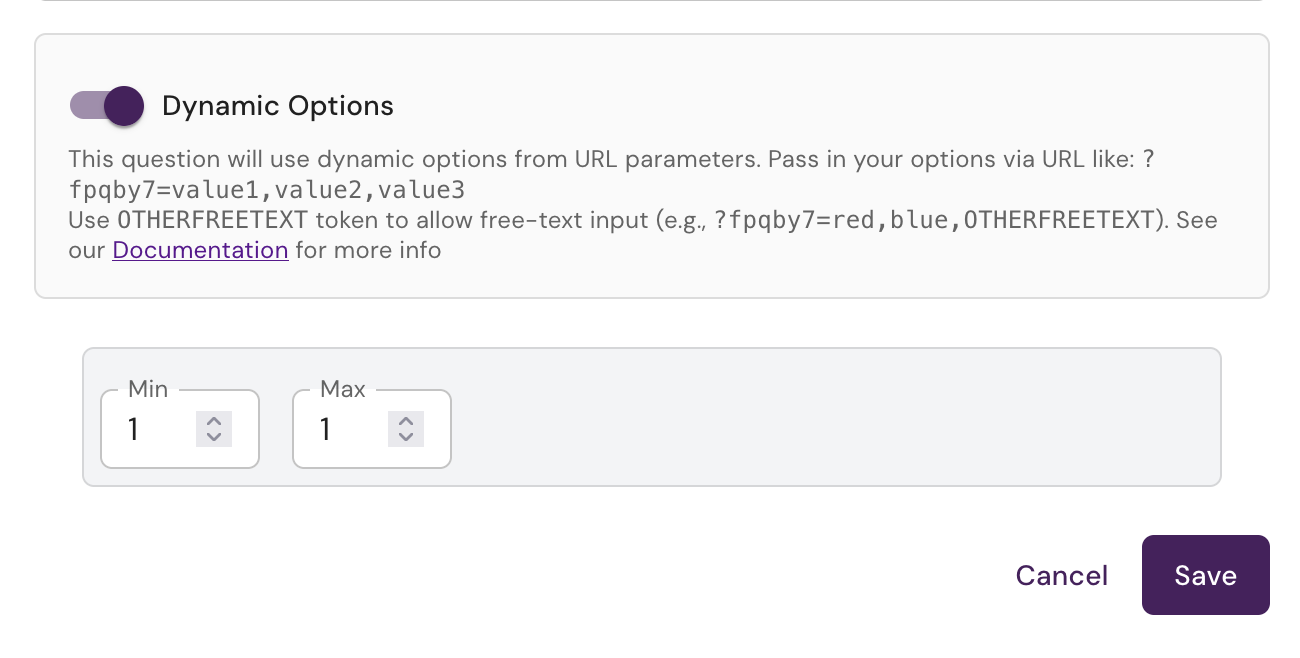
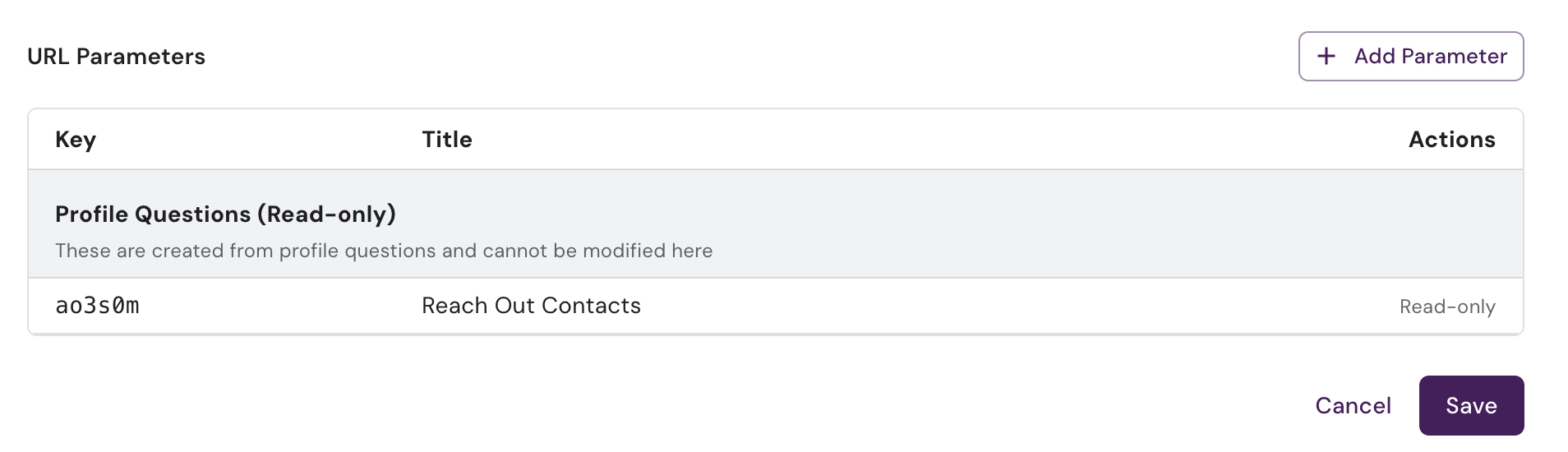
To get the id for the question you can copy it out of the help text under the Dynamic Options toggle, or you can go to the settings in the top right of the design tab and scroll to the URL parameters section and find it there
Text Questions
Text Questions are commonly referred to as open-ended questions. This is where the bulk of your in depth research happens and where you can really get some value from our AI system. Use these questions to really get at the heart of what you are looking to learn. Once you have accumulated sufficient data, you can use the Discover tab to drill even deeper with a combination of insights, themes and filters. These questions default to the global (chatbot) level follow up settings, but can be adjusted on a per question basis.
Question Layout and Options
The layout and options for the two questions types are very similar. Along the top of the question, you will find:
Question type toggle: For quantitative questions you can switch between single and multi select
Title: A cosmetic name that is helpful when reviewing questions. This is purely internal and is not shown to anyone taking the survey. Leave this blank and our system will automatically generate one for you
Delete: Remove the question for the design entirely
Along the bottom of the question, you have:
Follow-up Toggle: Select the desired number of follow-ups on the question level.
Action Buttons: Cancel and Save. They work as expected.
Both of the question types have text field for you to ask your question and a rich text editor where you can style, add a link, upload an image or insert a placeholder. We’ll cover all of these in greater detail elsewhere.
Multiple Choice Questions have the addition multiple choice section where you can add options. Click “Add Option” or hit the Tab key to add new options. Handles allow you to shuffle your options if needed, while the “X” acts as a delete.
Followup Questions
For text questions there is a optional menu for selecting the followup depth, which controls how much the AI will ask followup questions to this question. This value defaults to the Chatbot default as set in Global Chatbot Options if nothing is changed.
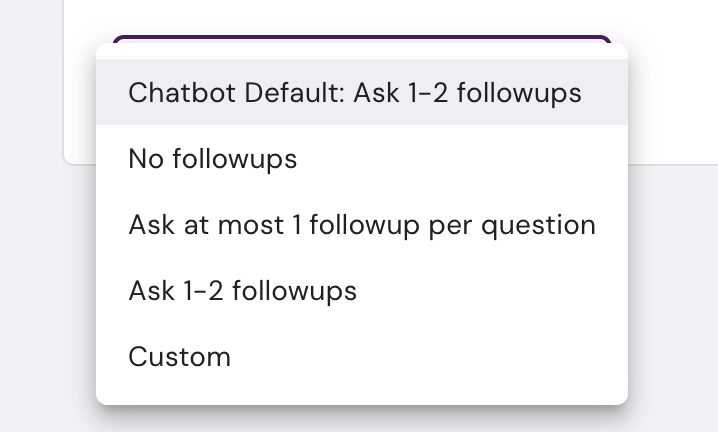
These followup values are guidelines and are not hard and fast rules - these values are what you should expect to see in the vast majority of cases, but as with any AI driven process, adherence to the guidelines can vary based on the situation.
Using a Custom followup prompt
If you want to provide more instructions to control the behavior of the followups you have two choices.
Use the selector to select one of the numeric based followups and then put general followup instructions in the Objective
Use the selector to select Custom and then put your followup instructions for that question
Which you use depends on the your needs. If you have instructions that are specific to one question then use the Custom option, if your instructions are generic then put them in the objective so they apply to the entire interview
Things to Avoid
Overly specific branching type instructions such as “If the user is unsure then ask X, if they are not interested use Y, if they say A ask B, if they say C ask D…”. You will quickly find that there are always more edge cases and scenarios you need to specify and the more instructions you provide the more “leakage” there is and the AI is less likely to follow other instructions
Specific wording (sometimes). Be careful with providing specific wording, the AI almost always latches on to that and uses it nearly verbatim. This can be good, or it can cause less variation, so whether it harms or hinders depends on your need
Was this helpful?
Still need help? Ask the team