Using blocks to split an interview across survey pages
Split one interview into blocks with their own embed codes, and see how blocks work for respondents, filters and exports.
Written By Get Reveal
Last updated 19 days ago
Blocks let you split one interview into several smaller parts, each with its own embed code. You can place each block on a different page of your survey, and Reveal joins the answers back together into a single interview per respondent.
What are blocks for?
Use blocks when you want to ask AI-led questions at more than one point in a survey. For example:
A few questions about first impressions near the start of a survey, and a deeper conversation about the product near the end.
Separate conversations about different concepts, each shown on its own survey page.
To a respondent, each block feels like a short, complete interview: it has its own welcome screen, intro and closing message, and it ends when they finish it. Behind the scenes, every block a respondent completes is saved to one interview, so you see all their answers together in Reveal.
If your whole interview happens in one place, you don't need blocks.
Turning blocks on
If you’d like access to use the blocks feature please reach out to Reveal to enable this feature on your account
Open your project's Design tab.
Open Chatbot Settings from the gear icon in the top right
Under Chatbot settings, switch on Use blocks.
Click Save. The change only applies when you save.
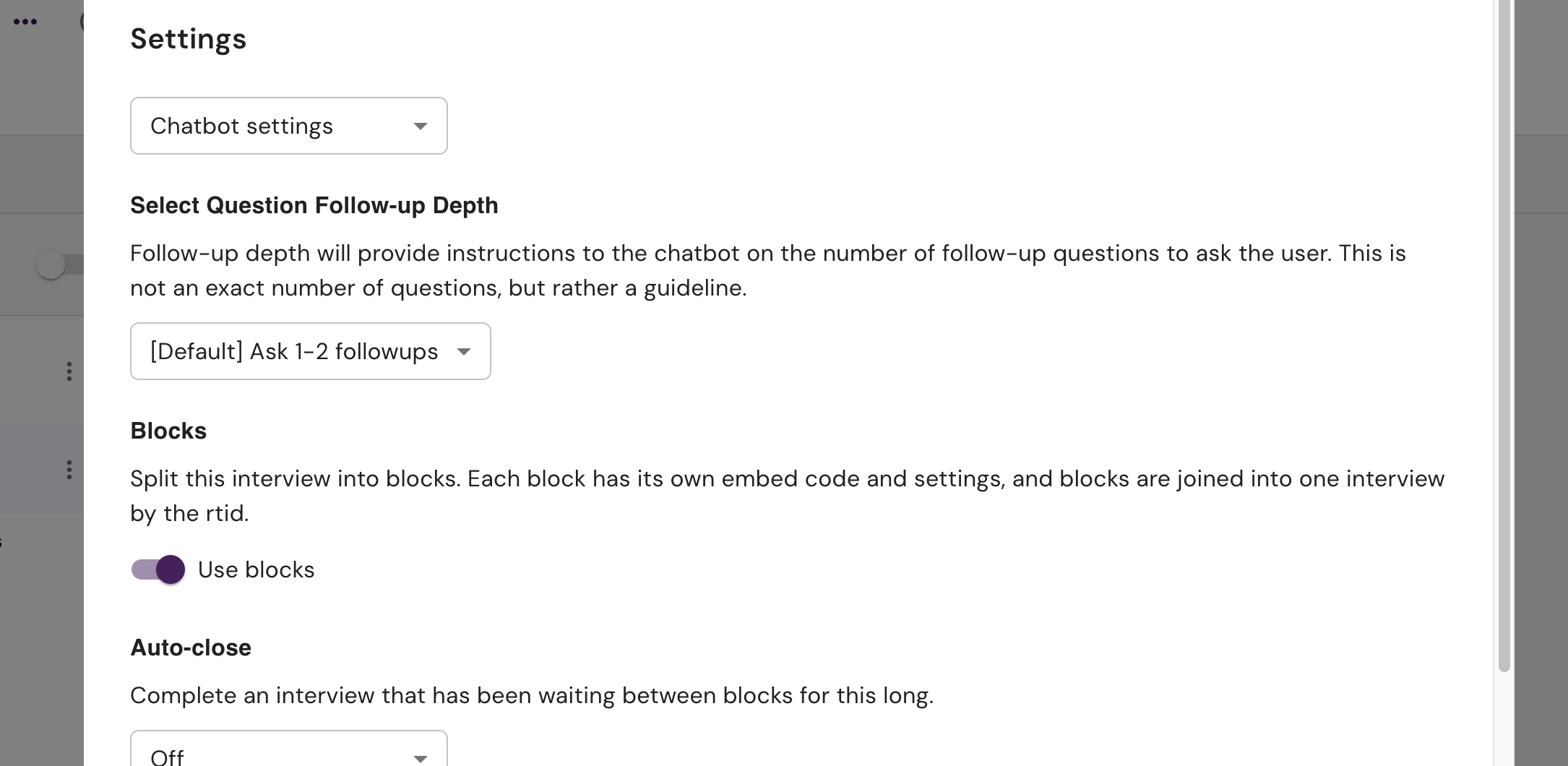
When you turn blocks on, all of your existing sections are moved into a single block called Embed 1. Your interview's objective, welcome, intro, outro and redirect settings move into that block too. Nothing is lost. Your Chatbot settings, such as follow-up depth and webhooks, don't change and apply to every block.
Blocks and the AI screener can't be used together. If the AI screener is on, turn it off first.
Turning blocks off
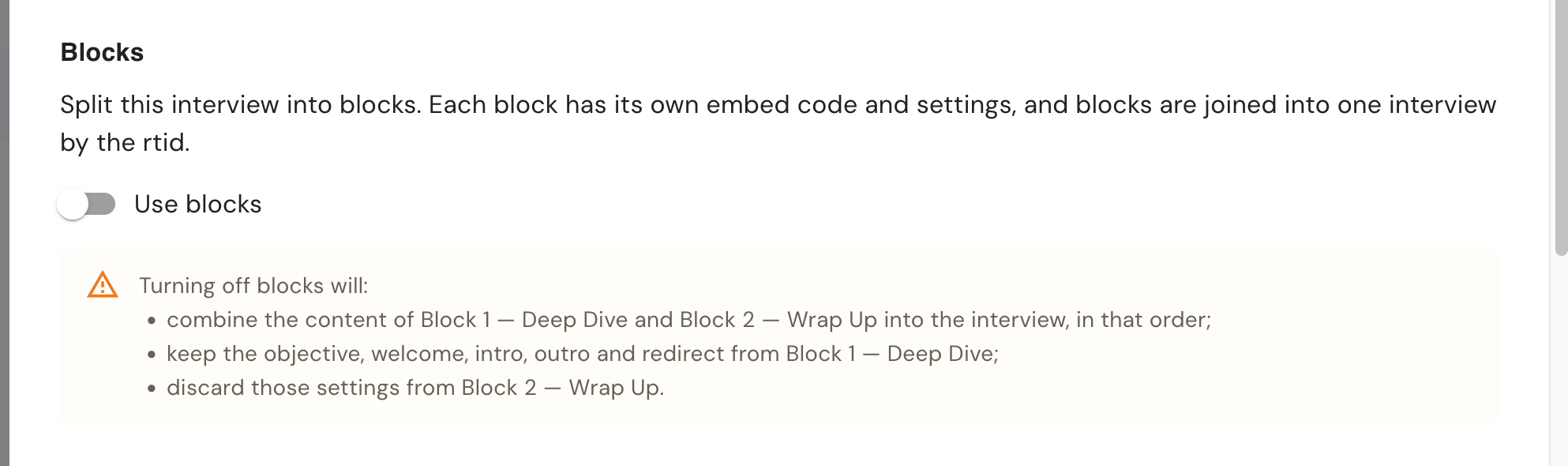
If you switch Use blocks off, Reveal shows a warning explaining what will happen when you save:
The content of every block is combined into one interview, in block order.
The first block's objective, welcome, intro, outro and redirect are kept.
Those settings on every other block are discarded.
⚠️ We recommend deciding whether to use blocks before you start collecting responses. Switching blocks on or off after launch changes your embed links, and the existing links will stop working.
Working with blocks in the designer
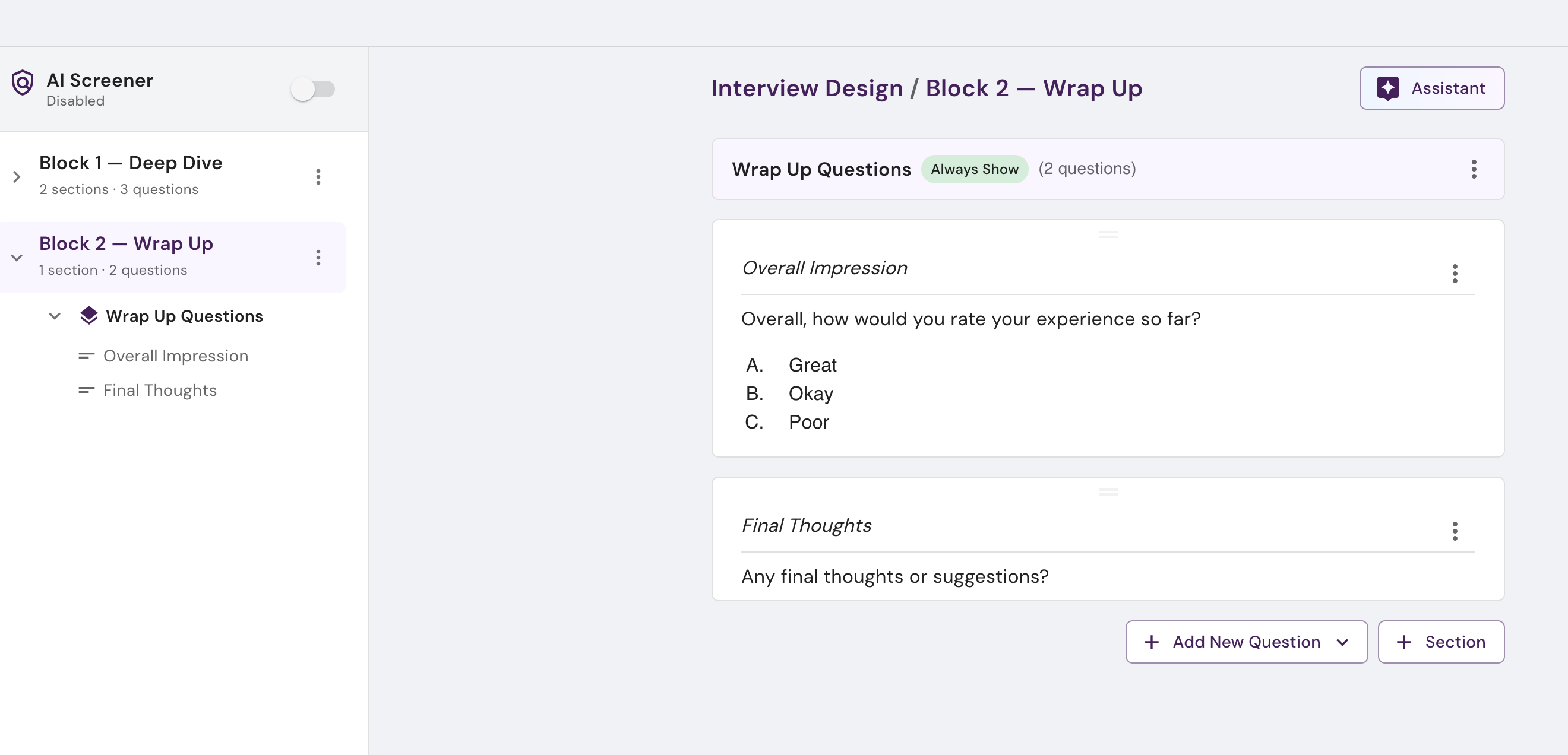
With blocks on, each block appears as its own group in the outline sidebar, with a count of its sections and questions. Click a block to show its content in the main design area.
Add a block: click + Block at the bottom of the outline sidebar. New blocks are named "Embed 2", "Embed 3" and so on. You can rename them in the block's settings.
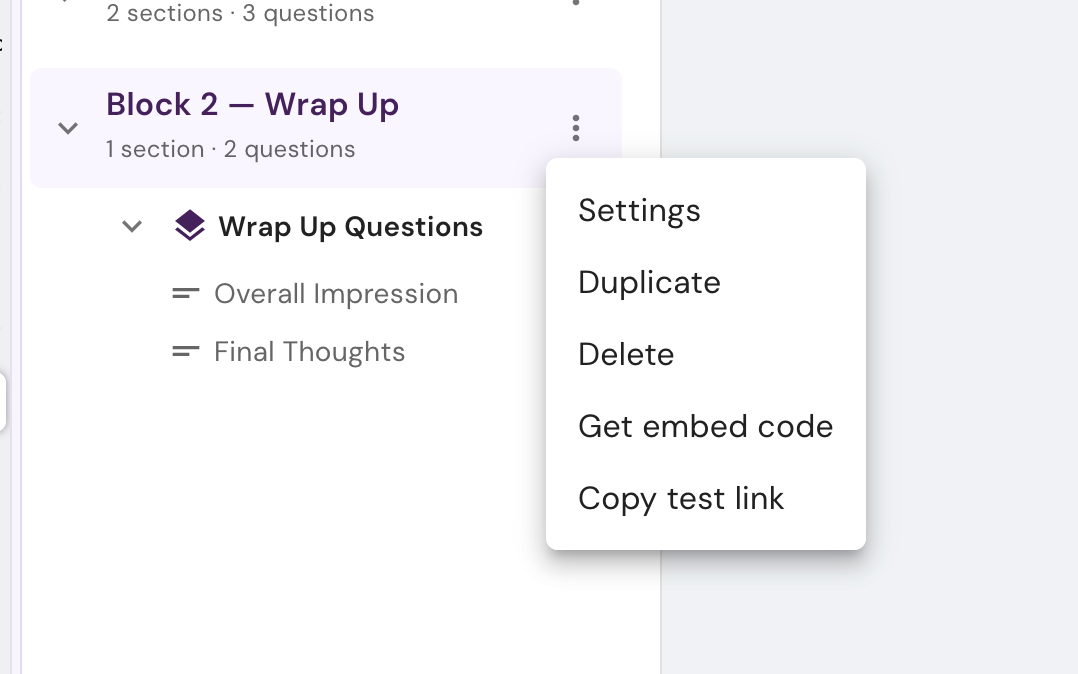
Block menu: each block's three-dot menu has:
Settings – edit this block's settings (see below).
Duplicate – make a copy of the block, named "(copy)".
Delete – remove the block. If it has sections, you can move them to another block or delete them with it. Your last remaining block can't be deleted.
Get embed code – open the embed window.
Copy test link – copy a link to try just this block.
Branching stays within a block. Branching conditions can only point to sections and questions in the same block.
Block settings
⚙️ Chatbot settings are global. Block settings are per block. Settings such as follow-up depth, auto-close, speech-to-text and webhooks are set once under Chatbot settings and apply to every block. Each block then has its own objective, welcome, intro, outro and redirect. See Configuring your interview for every setting.
With blocks on, settings work at two levels:
Chatbot settings are global. They are set once and apply to every block in the interview.
Block settings are per block. Each block has its own copy, so changing one block's intro or redirect doesn't affect any other block.
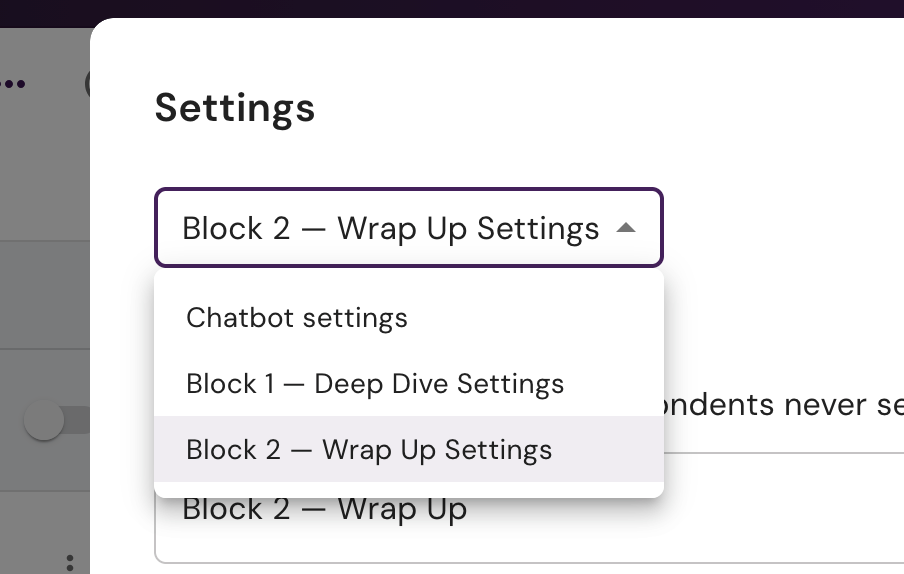
To switch between them, open the Settings window (the gear icon, or Settings in a block's three-dot menu) and use the dropdown at the top. Pick Chatbot settings for the global settings, or a block (for example Embed 1 Settings) for that block's settings. Each page saves separately.
Each block's settings page has:
How blocks work for respondents
Each block is its own session. When a respondent finishes a block, they see that block's outro just like the end of a normal interview, even if they haven't done the other blocks yet.
Any order, one at a time. Blocks can be completed in any order. However, once a respondent opens a block, they need to finish it before they can start another one. If they try, they're asked to finish the block they started.
Finished blocks stay finished. If a respondent opens a block they've already completed, they're shown that it's done rather than being asked the questions again.
One interview per respondent. All the blocks a respondent completes with the same Reveal Tracking ID (rtid) are saved to a single interview. The tracking id is required with blocks so we can link the transcripts to a single interview
Progress bar. The progress bar shows how far the respondent is through the current block.
Interview statuses and auto-close
Blocks add a new interview status:
Block end – the respondent has finished at least one block but not all of them.
The interview moves back to Active when the respondent answers their first question in another block, and becomes Complete when they finish the last one.
Respondents don't always come back for every block due to branching logic somewhere outside of Reveal. Auto-close decides what happens then. You'll find it under Chatbot settings, with these options: Off, 4 hours, 8 hours, 12 hours and 24 hours.
Auto-close on: an interview in Block end with no activity for the chosen time is marked Complete. Any blocks the respondent didn't do are left incomplete.
Auto-close off: an interview in Block end with no activity for 24 hours is marked Incomplete.
Auto-close only applies to interviews with two or more blocks.
Completion webhooks and emails are sent when the interview becomes Complete, not each time a block ends.
Embedding blocks
Each block has its own embed code. Open it from any block's three-dot menu → Get embed code.
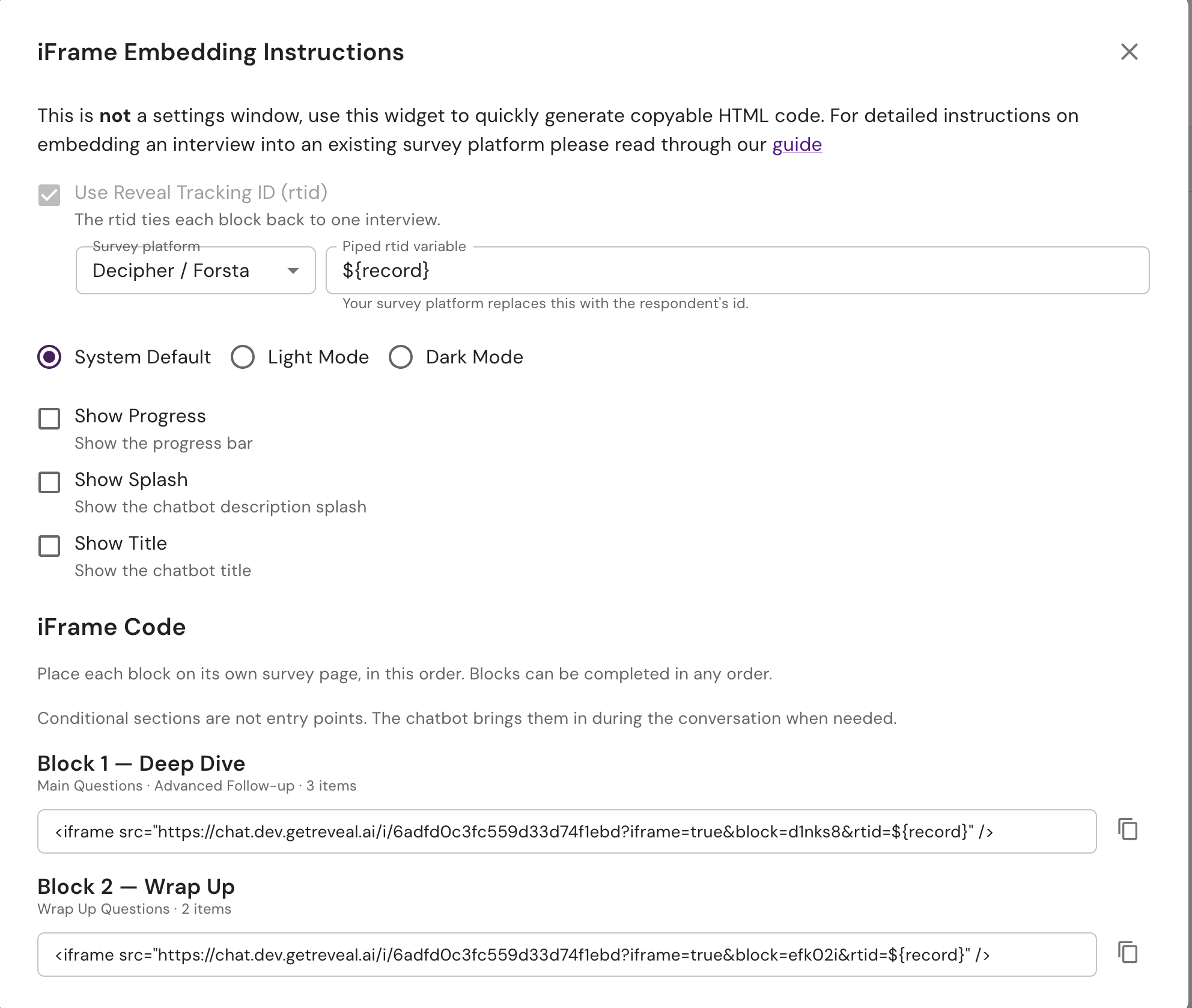
Reveal Tracking ID (rtid). When your interview has more than one block, Use Reveal Tracking ID (rtid) is always on. The rtid is how Reveal knows that answers from different blocks belong to the same respondent.
Choose your survey platform (Decipher / Forsta or Alchemer). The Piped rtid variable is filled in for you with that platform's respondent ID (for example
${record}for Decipher). You can edit it if you use a different variable. All embed codes update to match.Copy each block's code and paste it onto its own page in your survey. The window lists blocks in order and we suggest placing them in that order, but respondents can complete them in any order.
Good to know:
Only one block can be loaded at a time. If you have multiple blocks they must be on different pages in your survey so they do not load simultaneously.
Embed links don't change. Each block's link is tied to the block itself, so renaming the block or editing its questions doesn't change the link. You don't need to re-paste codes after making edits.
Use the same rtid on every page. Each block must receive the same respondent ID, or Reveal will treat them as separate interviews.
Empty blocks have no embed code. A block with no questions, or one made up only of conditional sections, is shown as empty.
Embed codes are only available for your live version. If you're viewing a draft or an older version, the embed code and test link options are turned off.
Testing a block
Use Copy test link from a block's menu to try out just that block. Test links don't need an rtid, and each test run is separate, so testing one block doesn't affect another.
Viewing results
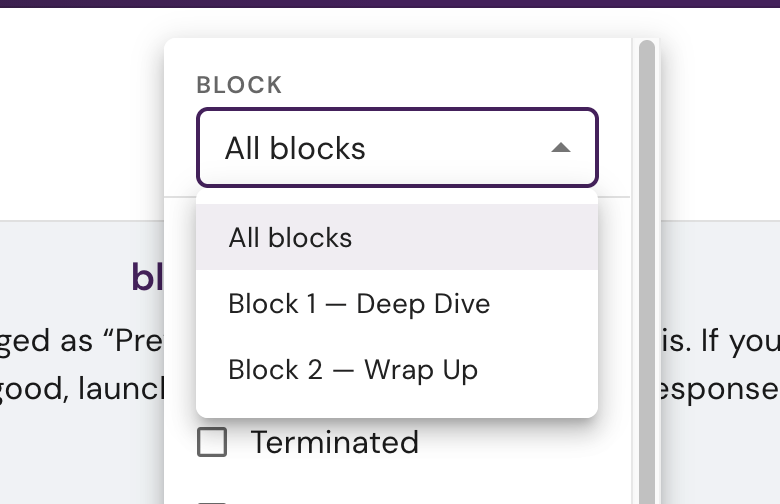
Filtering by block (Collect tab)
When blocks are on, the Collect tab has a block filter. Choose a block to see only interviews where the respondent opened that block, or choose All blocks to see everything.
Transcripts
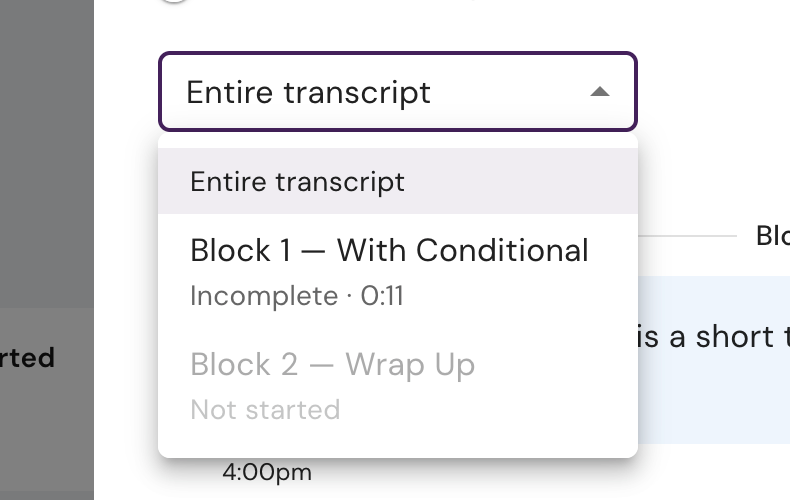
When you open an interview's transcript, the messages are grouped by block. Each block shows its status: Completed, In progress, Incomplete or Not started. There is a dropdown menu to filter the transcript content to specific blocks if you want to jump around quickly
Exporting data
When blocks are on, data exports include which blocks each respondent saw. A block counts as "seen" when the respondent opened it, whether or not they finished it.
Raw Tabular (one row per interview) has a Blocks seen column. Each block is listed as its ID and title, separated by semicolons, e.g.
a1b2c3:Concept A; d4e5f6:Concept B.Raw Readable shows which block each message belongs to, and includes a "Blocks seen" line in each interview's details.
Block titles in the export come from your current interview design. If a block has since been deleted, only its ID is shown.
FAQ
Do I need to use blocks?
No. Blocks are off by default and your existing interviews keep working as they are.
Can I use blocks with only one block?
Technically yes but there is no benefit and it makes things more complex. If you only have one block then you should turn blocks off and go back to a regular chatbot.
Why can't I turn on blocks?
Blocks can't be used with the AI screener. Turn the screener off first. If you don't see the Use blocks option at all, contact us to have it enabled for your account.
Can I force respondents to complete blocks in a set order?
Sort of. Your survey controls which page a respondent sees, but Reveal lets blocks be completed in any order.
Was this helpful?
Still need help? Ask the team