Exporting Data
Understanding export formats
Written By Get Reveal
Last updated 8 months ago
Overview
The Data Export feature allows you to download your interview data in different formats depending on your needs. You can export:
Interview transcripts in two CSV formats (Readable or Tabular)
Analysis data as an Excel workbook (when AI analysis is available)
Accessing Data Export
Navigate to your project in the dashboard
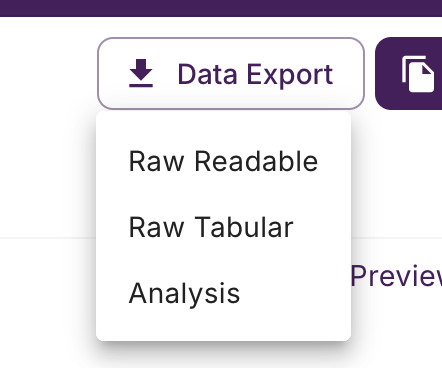
Look for the "Data Export" button in the top toolbar
Click the button to see the available export options
Note: The Data Export button is only available for projects that are collecting or closed (not in testing mode).

Export Options
When you click the Data Export button, you'll see a dropdown menu with up to three export options:
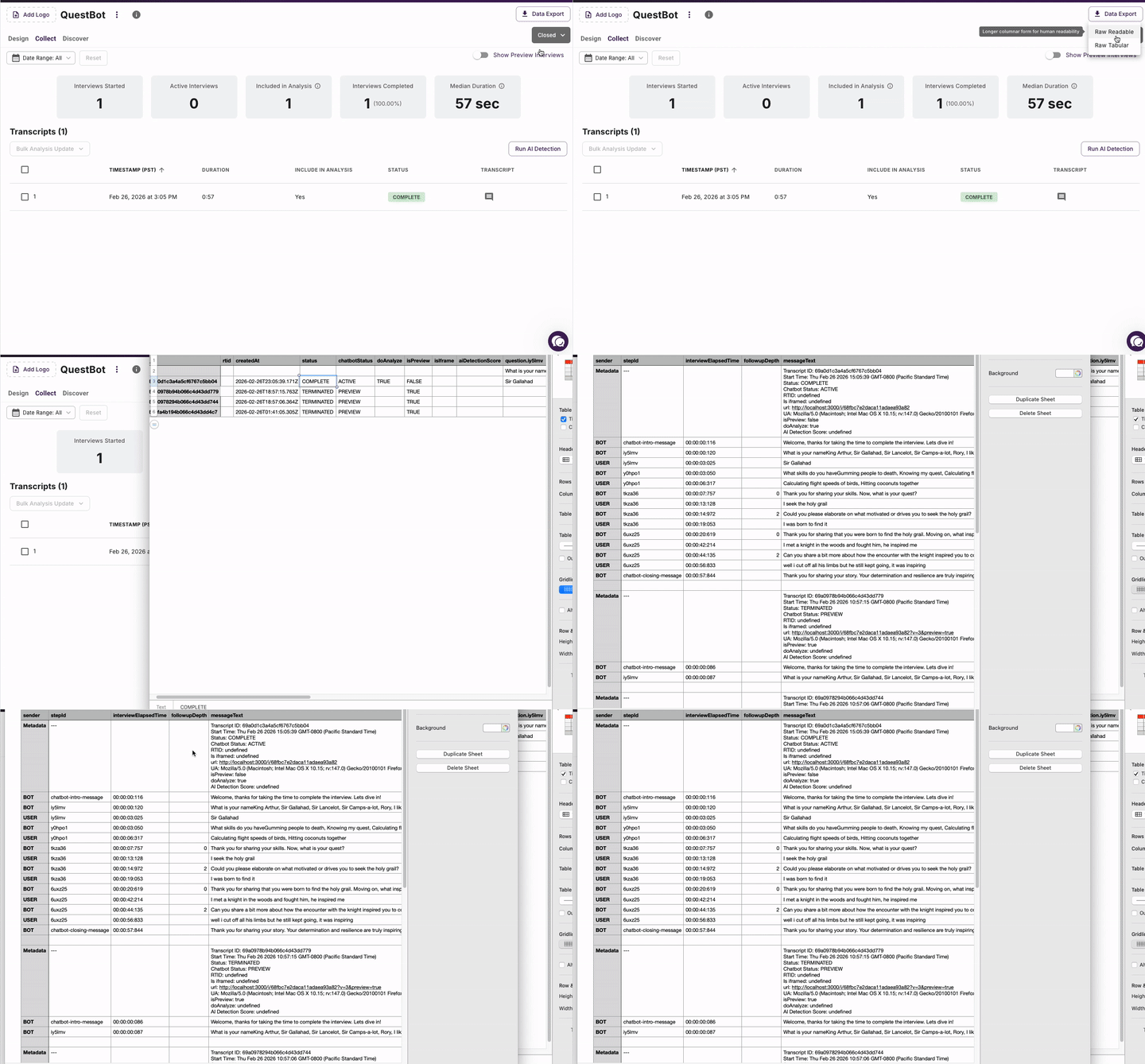
1. Readable (CSV)
Best for: Reviewing individual interview conversations in detail
Format: Comma-separated values (.csv)
What's included:
Interview metadata (ID, start time, status, URL, etc.)
One row per message in each interview, each interview takes up many rows
Question/step information
Full conversation flow with timestamps
Interview attributes
Structure:
Each interview starts with a metadata block
Followed by the conversation with columns:
Sender (user or bot)
Step ID
Elapsed time
Message text
When to use this format:
You want to read through conversations like a transcript
You need to see the exact flow of each interview
You're analyzing conversation patterns or user behavior
You want maximum detail and readability
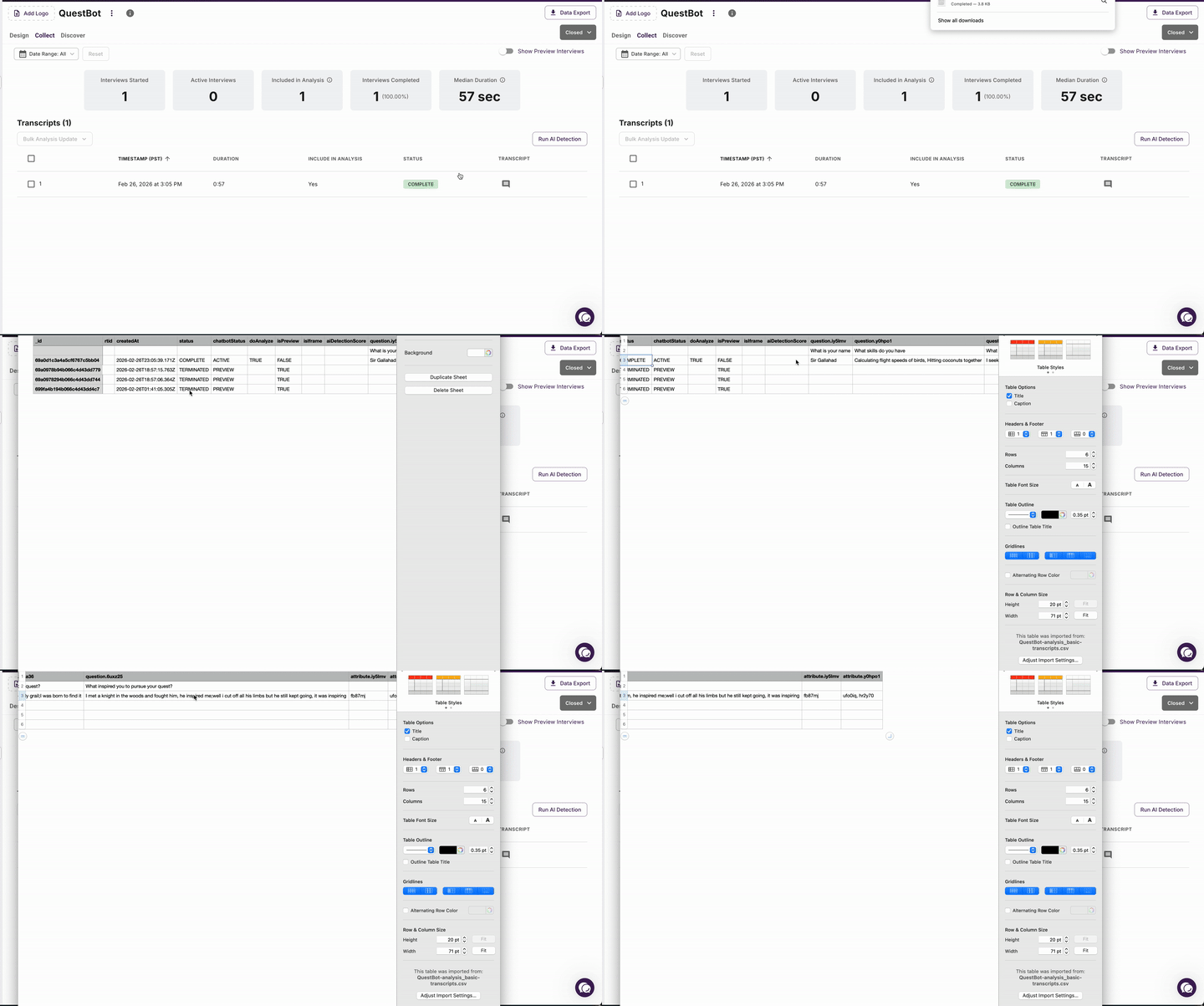
2. Tabular (CSV)
Best for: Analyzing responses across multiple interviews in a spreadsheet
Format: Comma-separated values (.csv)
What's included:
One row per interview
Each question gets its own column
Interview attributes in separate columns
Interview metadata (ID, date, duration, status)
Structure:
Each row represents one complete interview
Columns are organized as:
Interview metadata (ID, created date, etc.)
Attributes (e.g.,
attribute.name,attribute.email)Questions (e.g.,
question.step_id_1,question.step_id_2)
When to use this format:
You want to analyze data in Excel, Google Sheets, or other spreadsheet tools
You need to compare responses to the same question across interviews
You're creating charts, pivot tables, or other data visualizations
You want a compact, organized view of all responses
3. Post AI Processing (Excel)
Best for: Exploring AI-generated themes and insights from your interviews
Format: Excel workbook (.xlsx)
What's included: Five sheets in one workbook:
themes - AI-identified themes and subthemes from your interviews
insights - Key insights linked to themes with supporting quotes
chatbot steps - Your interview questions and step IDs
transcripts (verbose) - Detailed transcript data with theme associations (one row per question per interview, similar to the Readable format)
transcripts (single row) - Compact transcript data (one row per interview, similar to the tabular format)
When to use this format:
You've run AI analysis on your interviews
You want to see themes and insights identified by AI
You need to understand which interview responses relate to which themes
You're creating reports or presentations with AI-generated insights
Note: This option only appears if you have analyzed data for your project.
Understanding the Data
Interview Metadata
Interview ID - Unique identifier for the interview
Created Date - When the interview started
Status - Whether the interview was completed
Chatbot Status - Whether the chatbot was in PREVIEW or ACTIVE mode when the interview was taken
Duration - How long the interview took
RTID - Tracking id that was passed in to the interview (if rtid was used)
AI Detection Score - Indication of whether responses may be AI-generated
Is Preview - If the interview was a preview interview
Do Analyze - If the interview should be included in the analysis
Frequently Asked Questions
Q: Can I export data for a specific date range?
A: Currently, exports include all interviews in the project. You can filter by date in your spreadsheet software using the created date column.
Q: Can I export data from multiple projects at once?
A: No, you need to export each project separately.
Q: Can I customize which columns appear in the export?
A: The export formats are standardized. After downloading, you can hide or delete columns in your spreadsheet software.
Was this helpful?
Still need help? Ask the team