Design Assistant
Written By Get Reveal
Last updated 5 months ago
How to Use the Designer Assistant
The Designer Assistant is your AI-powered companion for creating and refining your projects in the Reveal AI platform. It helps you build better and faster with a variety of helpful offerings including:
Import an outline from a document or pasted text
Generate new questions or an entire new survey
Make desired changes
Provide suggestions / feedback
Getting Started
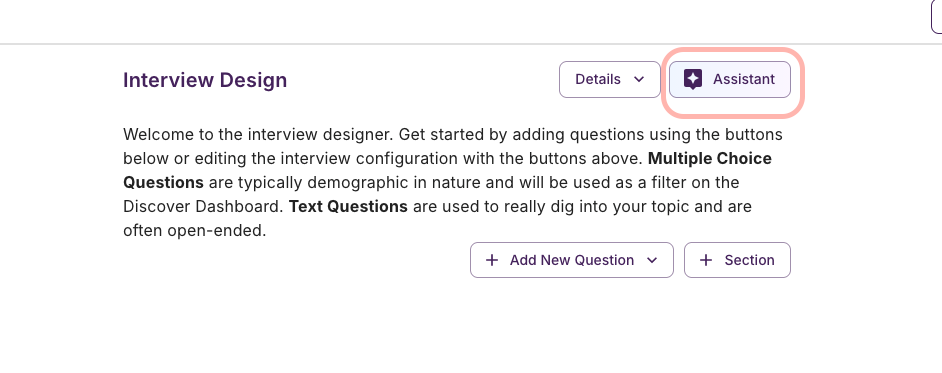
Accessing the Designer Assistant
Navigate to your project in the Reveal AI dashboard
Click on the Design tab
Look for the Assistant section in the sidebar
Starting Your First Conversation
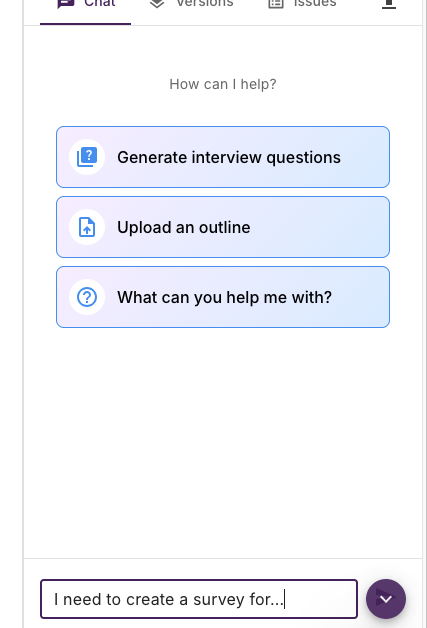
When you first open the Designer Assistant, you'll see a welcoming message: "How can I help?"
You have two options to get started:
Use Quick Action Buttons - Click one of the suggested prompts for common tasks
Type Your Own Message - Ask the assistant anything about your survey design
Key Features
1. Natural Conversation
Simply type what you want to accomplish, and the Assistant will help you:
"Help me create questions about customer satisfaction"
"What's the best way to ask about pricing preferences?"
"Review my current survey design"
The Assistant will respond with suggestions, create questions for you, or provide guidance on best practices.
2. Pre-Built Actions
Click the action buttons for instant help with:
Import Questions - Upload a document or paste text to automatically generate survey questions
Generate Embed Code - Get the code to embed your survey on your website
3. Import Questions from Documents
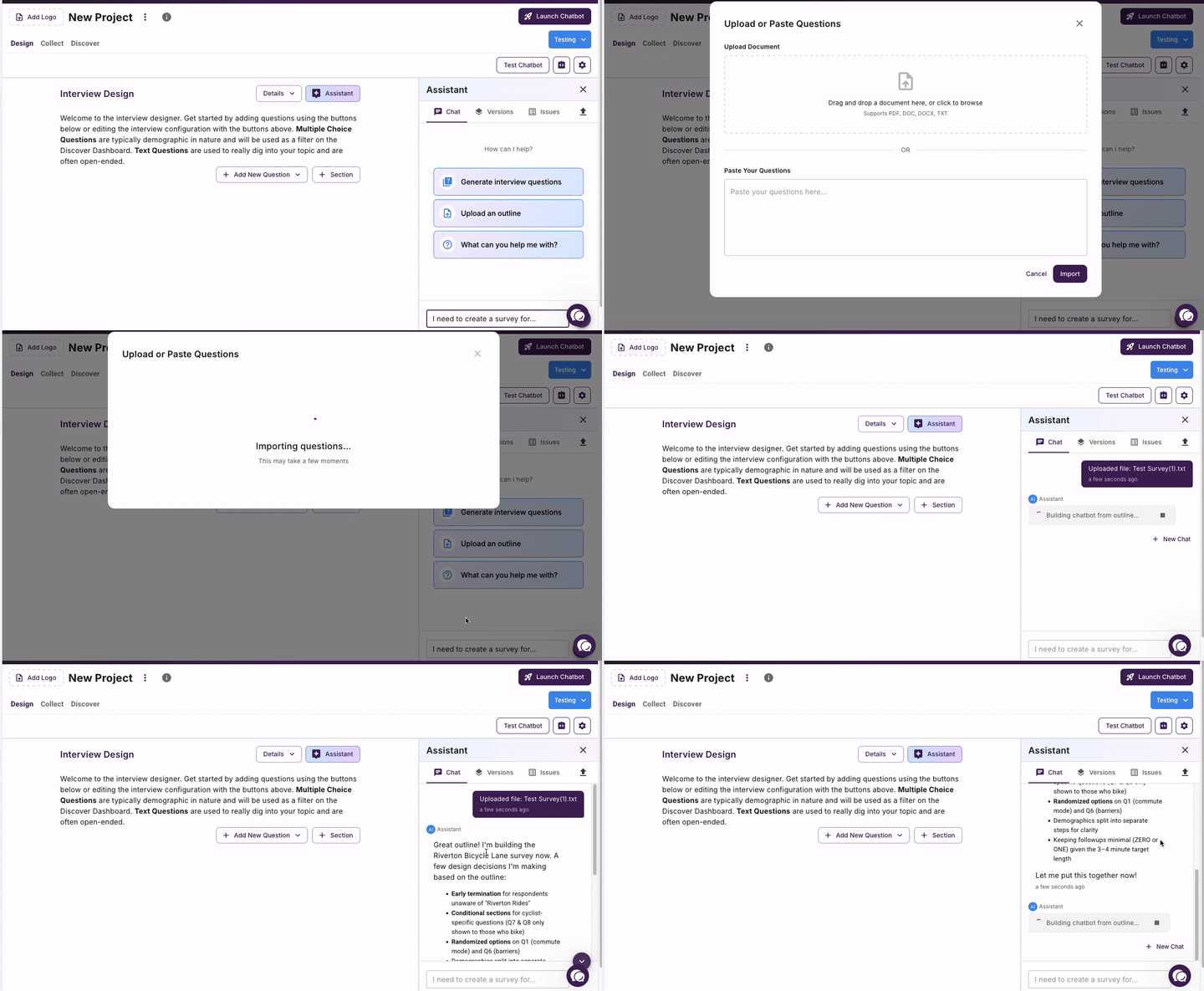
Have questions already written? Import them instantly:
Click the Import Questions button (or ask the Assistant to import)
Choose to either:
Upload a file (Word doc, text file, etc.)
Paste your text directly
The Assistant will analyze your content and create properly formatted survey questions
4. Version Control
The Assistant automatically creates new versions when making significant changes:
Each version is saved in your history
Easily compare or revert to previous designs
Tips for Best Results
Be Specific
Instead of: "Make some questions" Try: "Create 5 questions about product satisfaction for a SaaS company"
Ask for Revisions
The Assistant can refine its work:
"Make that question shorter"
"Use simpler language"
"Add a rating scale option"
Start Fresh
Click New Chat to get a fresh chat context if the chat has gotten long, you’re switching contexts, or you notice the assistants performance has degraded.
Common Workflows
Creating a Survey from Scratch
Start a new chat
Describe your survey goal: "I need a customer feedback survey for a coffee shop"
Review the Assistant's suggestions
Ask for modifications: "Add questions about cleanliness and staff friendliness"
Review the final design in the Design tab
Improving an Existing Survey
Ask for specific improvements: "Make the survey shorter while keeping key insights"
Importing and Refining Content
Click Import Questions or ask the Assistant to import
Upload your document or paste your content
Review the generated questions
Refine with follow-up requests: "Combine the first two questions" or "Add answer choices"
Troubleshooting
The Assistant isn't responding
Check your internet connection
Look for a "Connection issue" warning at the bottom of the chat
Try refreshing the page
Check the Versions tab and make sure you’re not simply not viewing the latest version the assistant made
Click the “New Chat” button to start a new chat
Need to stop the Assistant?
If the Assistant is working on something you no longer need:
Click the Stop button that appears while it's processing
Was this helpful?
Still need help? Ask the team