Discover Tab Overview
Written By revealai
Last updated About 2 months ago
Use the Discover Tab to automatically uncover insights in your data. This feature identifies important patterns, trends, and anomalies so you can focus on taking action. In this article, we’ll explain each section and give details on how to get the most out of them.
Analysis is based on snapshots of your data based on the interviews you select to be included in analysis. By default this is all the qualified interviews but you also have the option of selecting by a date range (more on that later). The analysis pipeline and data processing operates only on the interviews that you dictated when creating your snapshot
Running Analysis
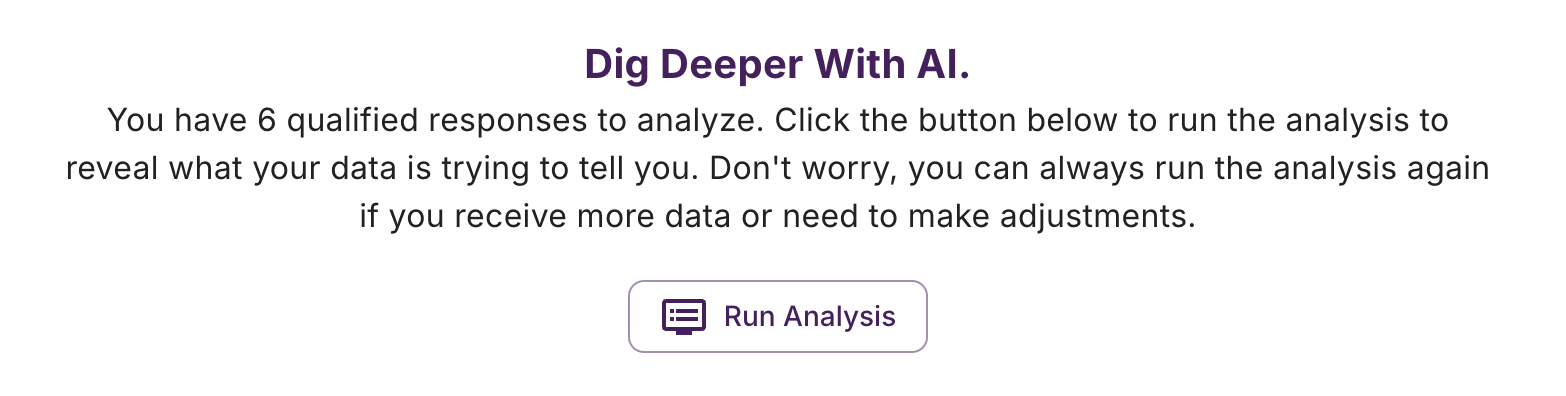
Running analysis is the first step required on the path to gaining valuable insights from your interview data. On your first visit to the tab, you will notice a button prompting you to run analysis if you have at least one qualified interview.
Customizing Analysis
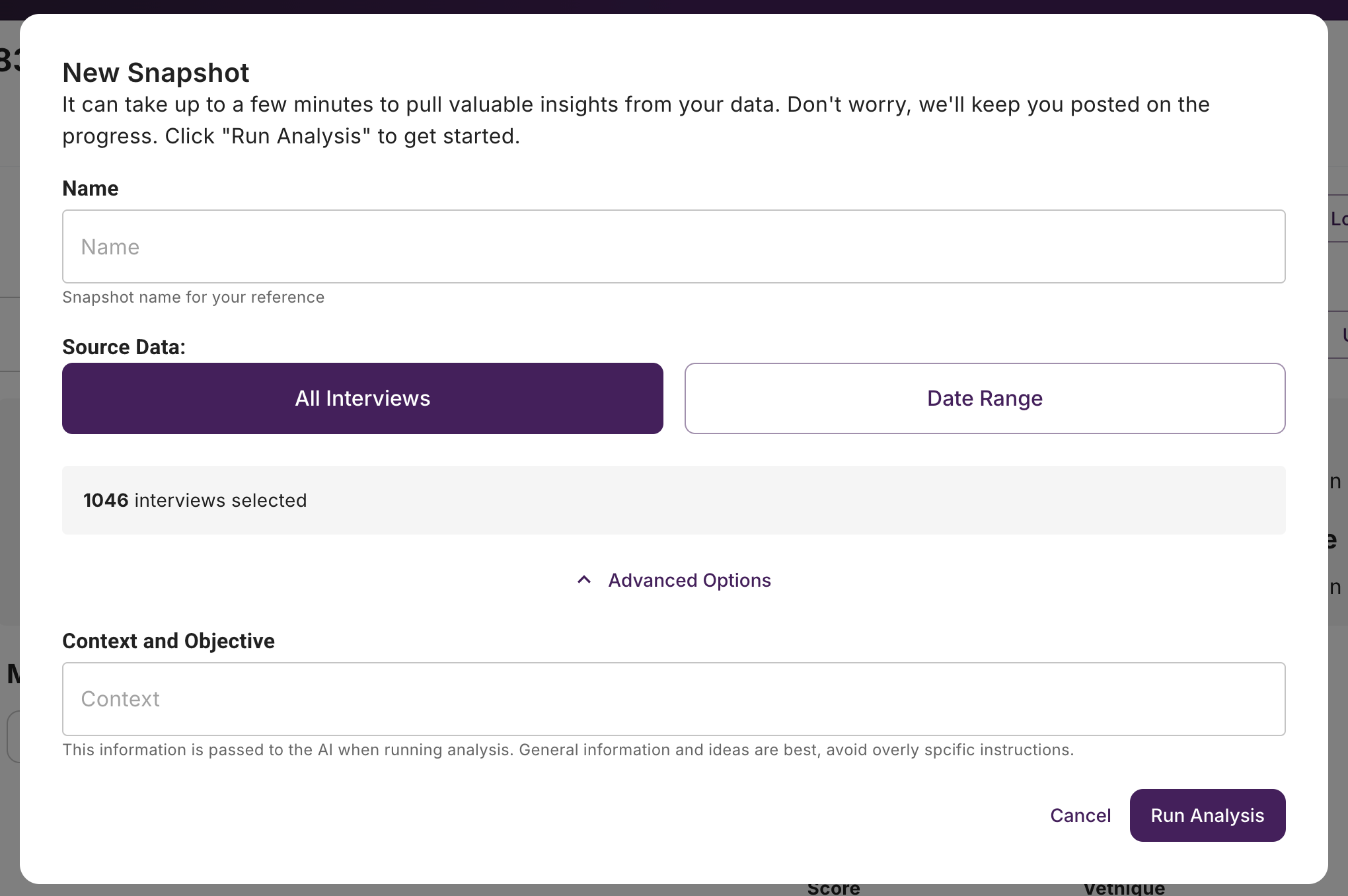
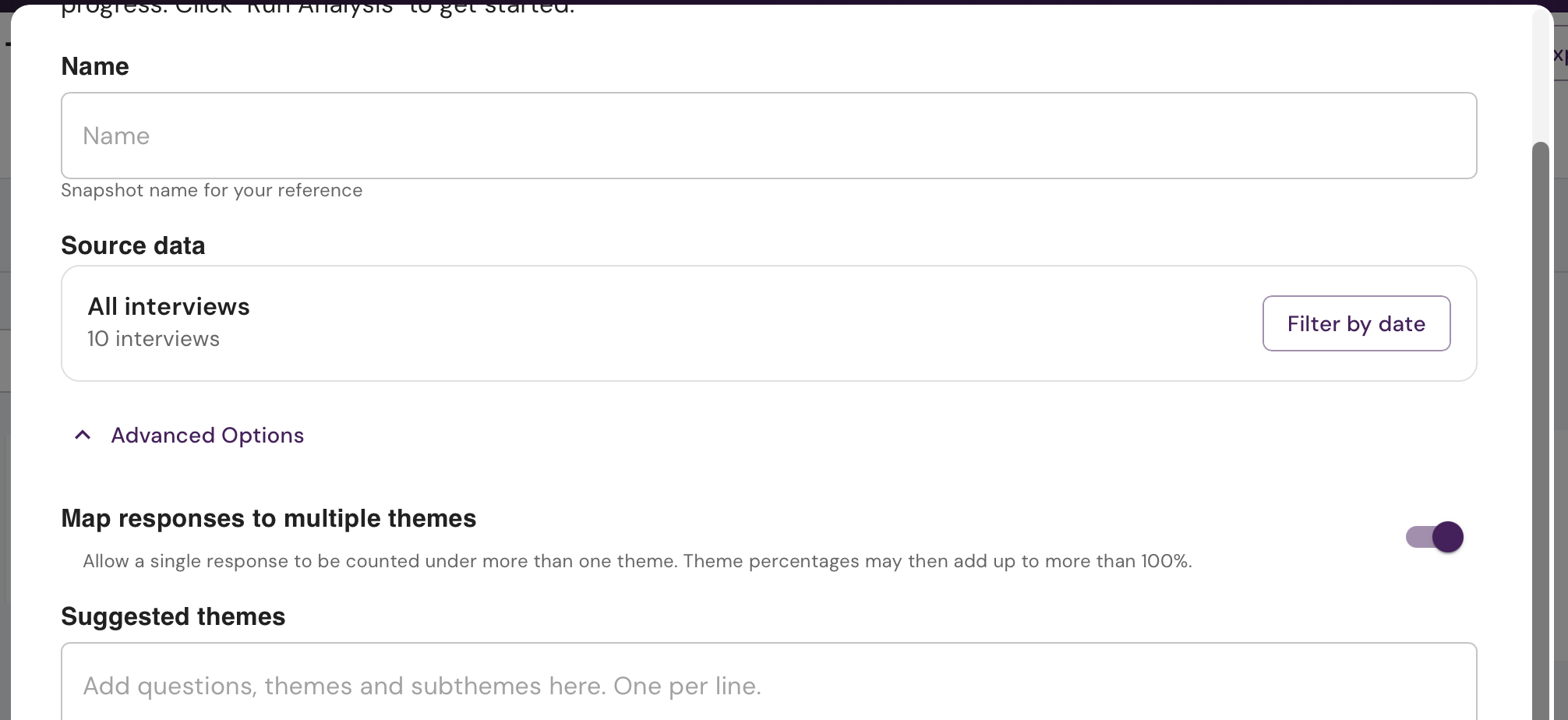
When you click “Run Analysis”a modal will be shown providing you with the opportunity to set some parameters. Since you can run analysis multiple times and each is a snapshot in time, it can be helpful to give them a recognizable name. This is not required. In the case that you don’t provide a custom name, the snapshot will be given a date stamp for you to reference.
Additionally you can choose “All Interviews” or select by a specific date range. Under the Advanced Options toggle you will find a text box for “Context and Objective” which is an extra prompt that will be passed to some of the analysis processes, adding custom instructions here can help guide the analysis process if you have specific interests or areas you want to explore, however it can also have unintended side-effects so some experimentation may be needed.
If you desire a more free-form way to interact with the data the best method is to run the analysis without any customization and then use the Chat With Your Data feature
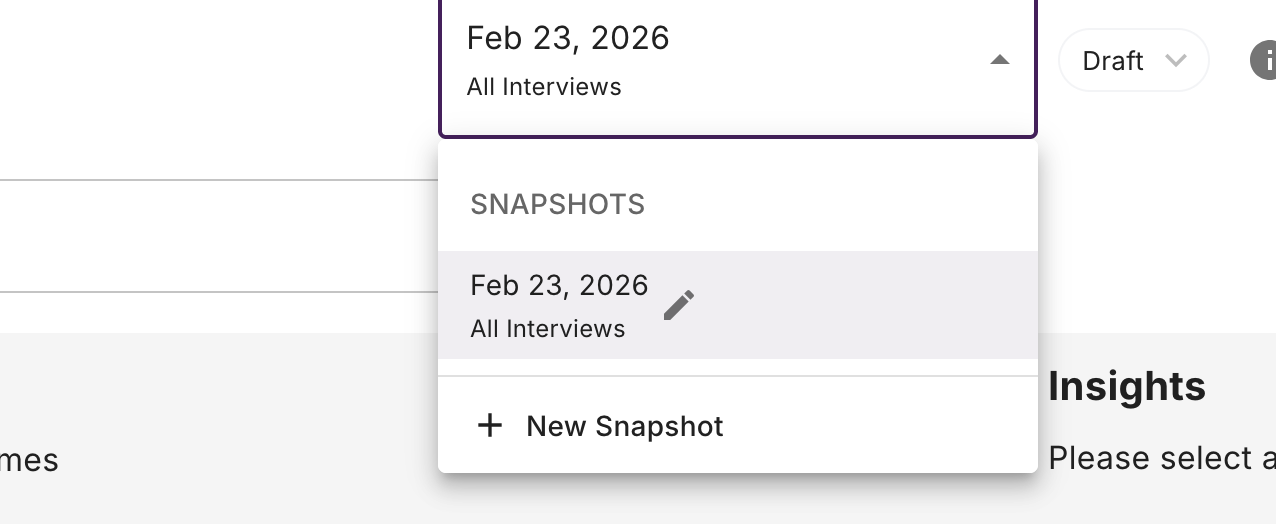
Once the analysis run has complete, you will see the name as part of a snapshots dropdown.
Discover Tab Sections
You've run your analysis and have insights - now it's time to explore! The discover tab has three main controls across the top: Report vs. Explorer Toggle, Snapshots Dropdown, and Chat With Your Data. The
Snapshots Dropdown
This dropdown lets you switch between snapshots, edit snapshot names, and delete snapshots. Inside the snapshot dropdown, is a New Snapshot button where you can create additional snapshots. This button will take you through a similar flow as outlined above.
Report View
The report feature provides a quick overview of the analysis with a concise summary and some key insights to get you up to speed on what’s going on in the data.
More sections and deeper insights are planned for the report feature!
You can download the report via the download button
Explorer View
The Explorer side has several sections: Filters, Themes, Insights, Quotes at a Glance, and Matching Responses.
When you first open the explorer, you'll see all responses from your entire dataset in the Matching Responses section. You can explore these right away using the filters on the left - just expand any filter group and select what you want to see. The responses will update automatically to match your selections.
To dive deeper into specific insights, select a question from the "Select a Question" dropdown at the top. This will populate the Themes, Insights, and Quotes sections with AI-generated analysis for that particular question.
Themes
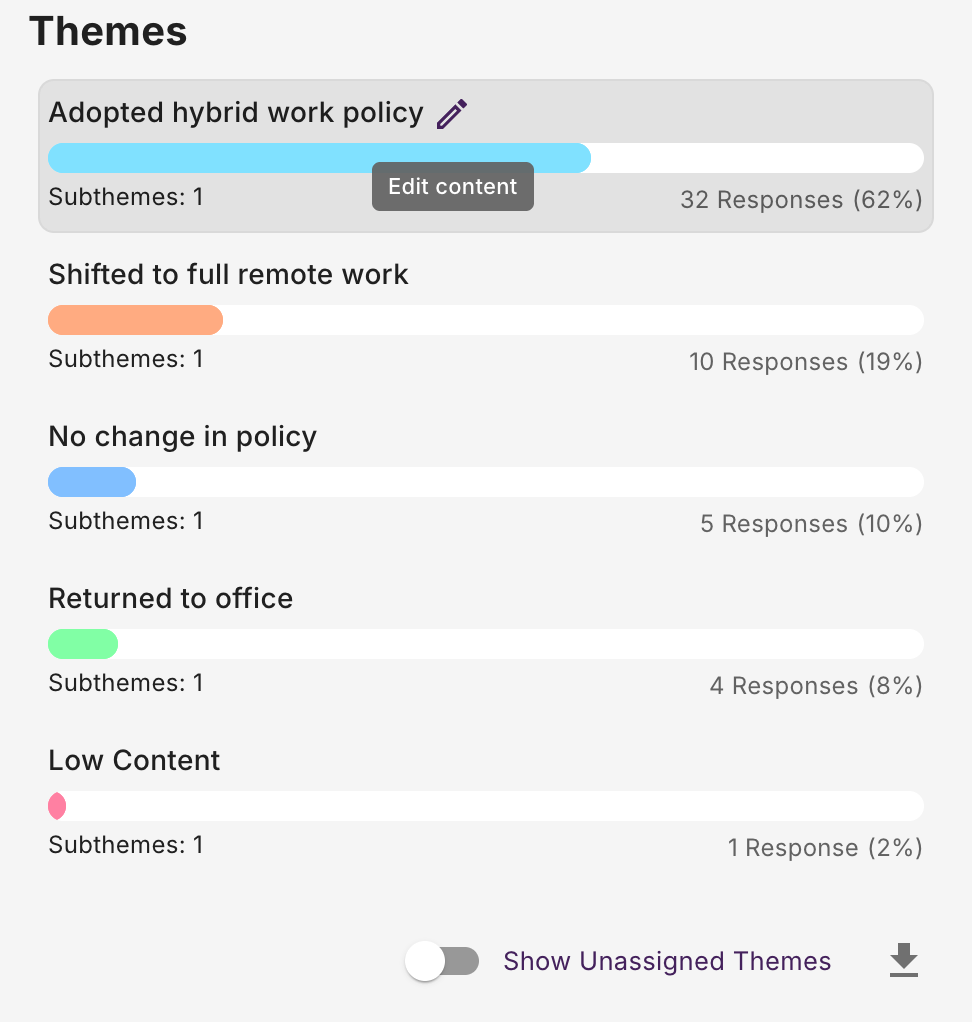
Themes are AI-generated summaries of responses to your selected question, ordered from most to least common. Some themes include subthemes with additional context - just click any theme to expand and see them.
There are a couple options at the bottom of the theme container:
Show Unassigned Themes: Will show a theme labelled “Unassigned” that contains all unassigned responses.
Download Icon: Downloads a PNG snapshot of the themes as they currently appear. If any subthemes are expanded, they'll be included in the export.
To edit a theme or subtheme title, hover over it, click the edit icon, update the text, and click the checkmark to save. Note that this only changes the display name - it won't reassign responses or theme.
Map responses to multiple themes
Previously, each open-ended response in an analysis was matched to a single theme — even if it touched on more than one topic. If a response mentioned both pricing concerns and customer support, only the strongest match "won," and the response was counted under that one theme alone.
Now you can let responses match multiple themes at once, so feedback that spans several topics gets credit in every theme it relates to — not just the closest one.
Insights & Quotes at a Glance
When you click on a theme, you'll see Insights and Quotes at a Glance. Insights summarize the main points and may include action items. Quotes at a Glance show representative responses that support the insights.
Each quote has a "View in Context" link to see the full response. To remove a quote, hover over it and click the delete button. To add quotes, click the star icon next to any quote in the Matching Responses section.
Matching Responses
The Matching Responses section shows supporting responses that can be filtered by selecting filters, themes, and/or subthemes. To view a response in context, click anywhere on the row or the message icon on the right.
Was this helpful?
Still need help? Ask the team