Connect Reveal to Claude and ChatGPT
Connect Reveal to Claude or ChatGPT in a few steps, so you can query your workspaces and chatbots directly from your AI assistant.
Written By Get Reveal
Last updated 2 days ago
Server URL: https://api.getreveal.ai/mcp You don't need a client ID or secret. Reveal registers each app automatically.
Claude (desktop app or claude.ai)
Sign in to Reveal in your browser.
Open Settings → Connectors (it may be labeled Customize → Connectors).
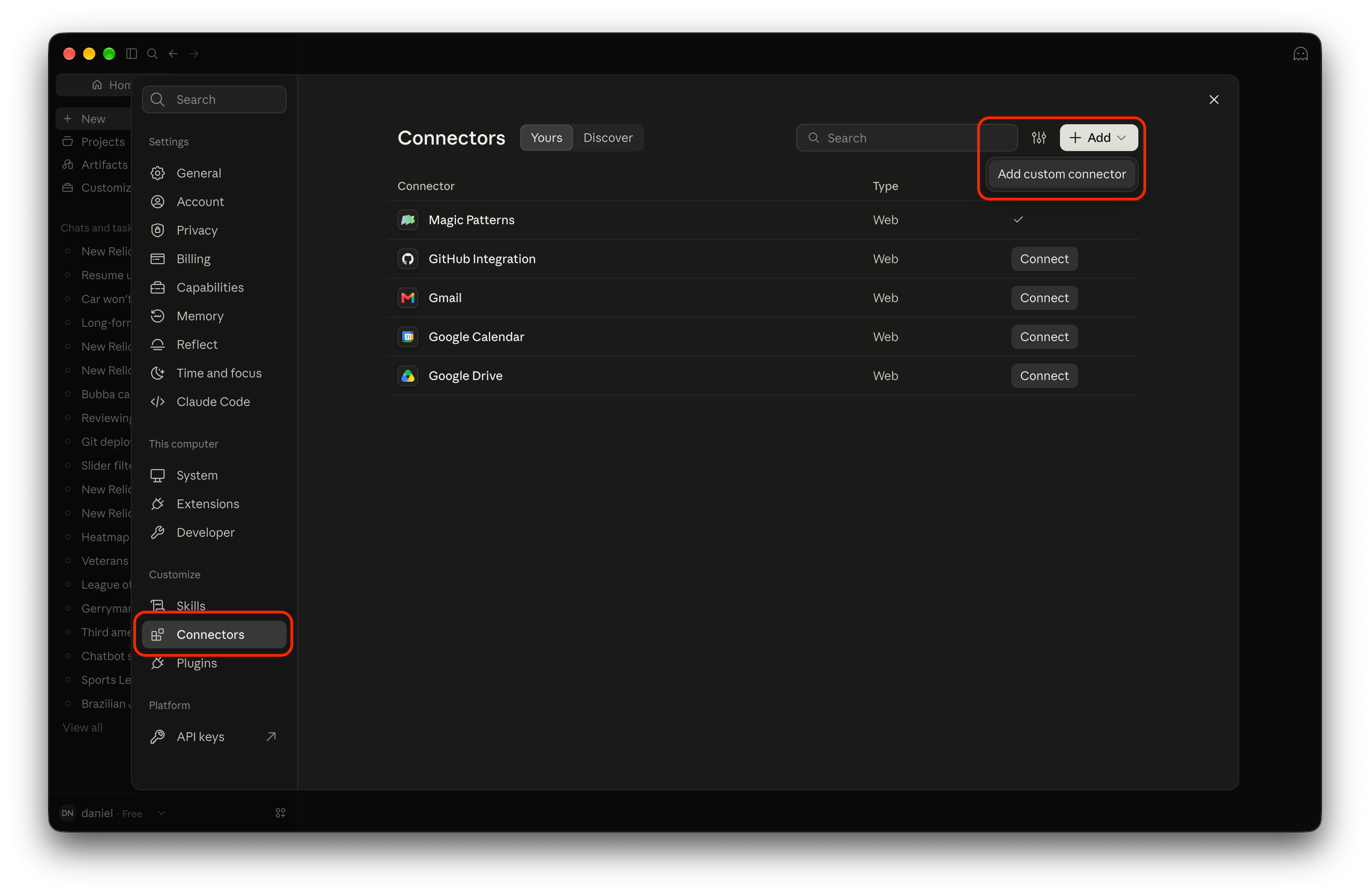
Click + → Add custom connector, enter the name
Reveal MCPand the server URL above, leave the advanced settings empty, and click Add.Claude will automatically detect the MCP connection settings. Don't change anything, and click Add.
Click Connect and authorize in Reveal: check the app name, then click Authorize. When the page says "Access Granted," you're connected. (You may see another authorization page from Claude at this stage. Simply click "Yes" or "Authorize" to continue.)
Claude on the web (claude.ai): the current tab redirects to the Reveal authorization page, then redirects back to Claude when you're done.
Claude desktop app: a new tab opens in your browser for the authorization page. Return to the app when it says "Access Granted." The browser tab stays open afterwards, and you can close it.
Enable Reveal for your session:
Desktop app: open the Code tab, start or open a session, then click + → Connectors in the message box and turn on Reveal for that session.
claude.ai: in a new chat, turn Reveal on from the tools menu in the message box.
Ask Claude to use it, for example "List my Reveal workspaces."
Team and Enterprise plans: an organization Owner first adds the connector under Organization settings → Connectors (Add → Custom → Web), then each member connects it from their own Connectors page.
ChatGPT (browser or desktop app)
Sign in to Reveal in your browser.
Open the Add menu:
Browser (chatgpt.com): click Plugins in the left sidebar, then Add (top right).
Desktop app: open Settings → Integrations → Plugins, then click Add (top right).
[Unverified] Choose the option to add a custom MCP server, enter the name
Revealand the server URL.[Unverified] Set authentication to OAuth, accept the risk confirmation, and click Create.
Sign in to Reveal if asked, check the app name, and click Authorize.
ChatGPT on the web (chatgpt.com): the current tab redirects to the Reveal authorization page, then redirects back to ChatGPT when you're done.
ChatGPT desktop app: a new tab opens in your browser for the authorization page. Return to the app afterwards. The browser tab stays open, and you can close it.
Confirm Reveal shows up under your installed plugins, then use it in a new chat.
Try it
"List my Reveal workspaces." Then "Show the chatbots in my Default Workspace."
Troubleshooting
Stuck after "Access Granted": a blocker such as uBlock Origin, Privacy Badger or Brave Shields may be blocking the redirect back. Turn it off for
app.getreveal.ai, or use a private window.No Developer mode in ChatGPT: check your plan. On a workspace plan, ask your admin.
"Elevated risk" warning in ChatGPT: this is shown for any custom connector.
Connected to the wrong org: the connection uses the org you're signed in to when you approve. Switch orgs in Reveal, disconnect, and connect again.
"No longer valid": approval links last about 10 minutes, so reconnect from the client.
Sources
Was this helpful?
Still need help? Ask the team