Configure Theme
Reuse the themes a snapshot already found instead of starting over.
Written By Get Reveal
Last updated About 2 months ago
When RevealAI analyzes your open-ended responses, it builds a set of themes with subthemes nested under them. Configure Theme lets you pull that list back out, edit it, and run the analysis again — or copy it into another project.
Where to find it
In a project, go to Discover → Explorer, pick a question, and click Configure Theme in the top-right of the Themes panel.
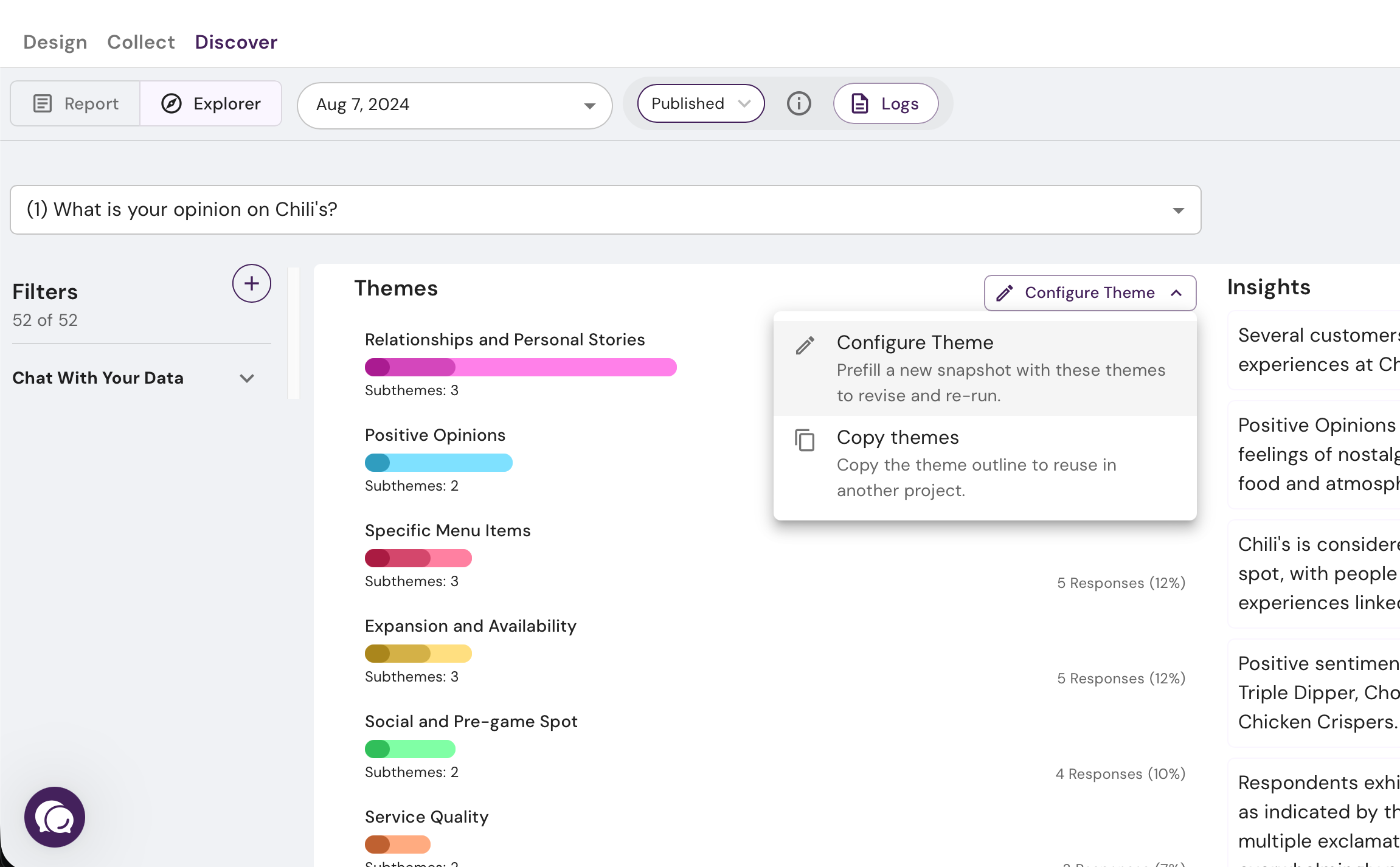
- Configure Theme — prefill a new snapshot with these themes to revise and re-run.
- Copy themes — copy the outline to reuse in another project.
Revise and re-run
Click Configure Theme → Configure Theme. The New Snapshot dialog opens with Suggested themes already filled in. Edit the list — rename, delete, add, or re-nest anything — then click Run Analysis.
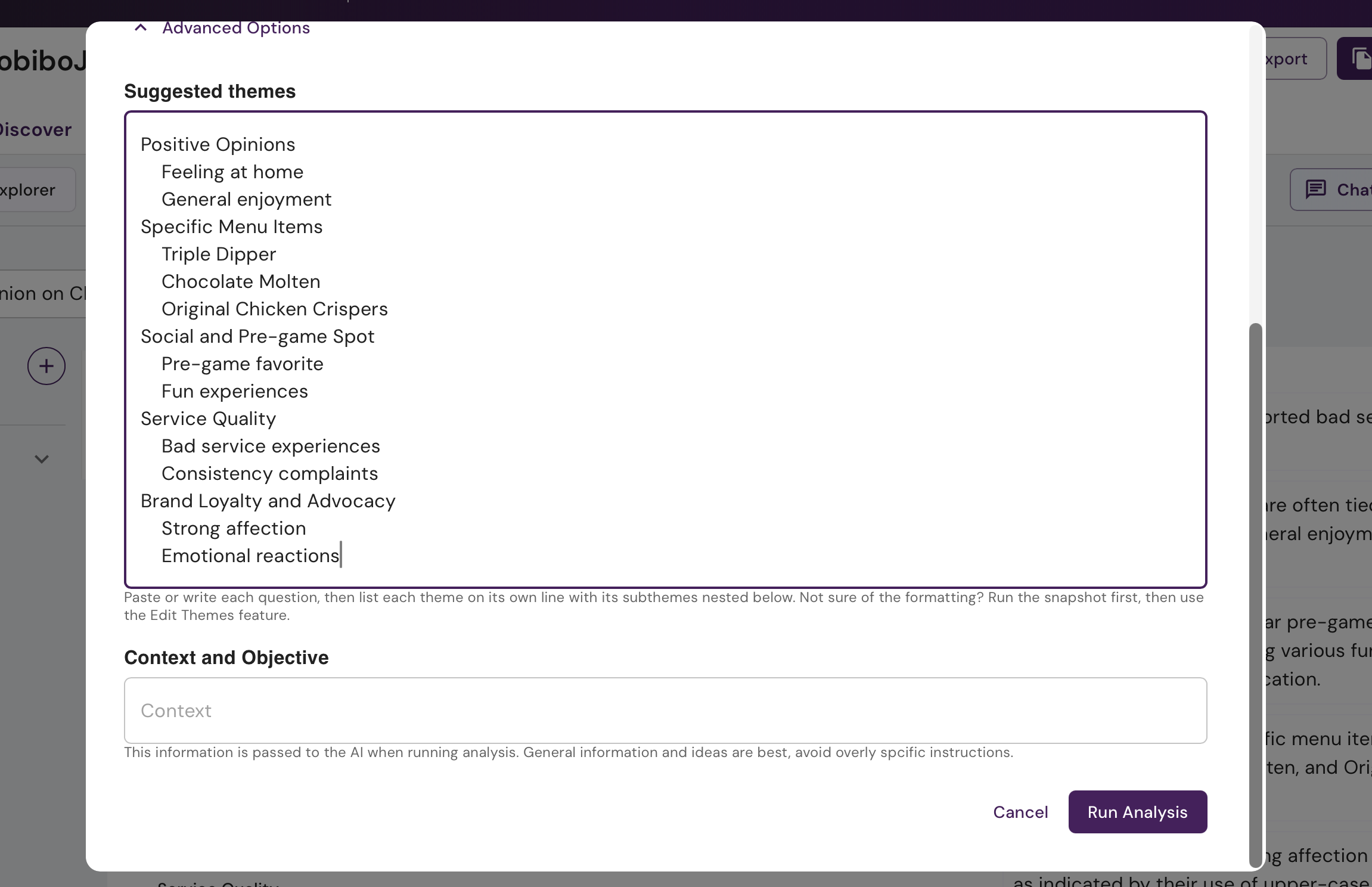
Themes sit at the left margin, subthemes are indented one level under their parent, one per line:
Positive Opinions
    Feeling at home
    General enjoyment
Specific Menu Items
    Triple Dipper
    Chocolate Molten
Your original snapshot isn't changed — this creates a new one.
Copy to another project
Copy themes puts the outline on your clipboard. Paste it into the Suggested themes box of any other project's New Snapshot dialog to code a second study the same way as the first.
Good to know
Only available on projects with exactly one open-ended question, since the outline doesn't record which question a theme belongs to.
Hidden while a snapshot is still running, and greyed out until you select a question.
Your themes guide the analysis but don't lock it — the AI may still adjust how responses map onto them.
Requires editor access and the Suggested themes feature. If you only see Copy themes, you don't have permission to create snapshots.
Was this helpful?
Still need help? Ask the team